What’s changing in DumbPhone 1.1.0: clearer screens from setup to search
A preview of DumbPhone 1.1.0. Before-and-after images show improvements to setup, home-screen editing and search. We also discuss future plans for the home screen and focus mode.
Version 1.1.0 of DumbPhone, SANGE Studio’s Android launcher, will bring changes to setup and everyday interactions.
This update focuses on the journey from first launch to the home screen, editing the apps shown there, and search. We reorganized the guidance and controls to make it clearer what you are setting up and what to do next.
This article introduces the improvements through before-and-after screen comparisons.
Main changes
| Item | Earlier implementation | 1.1.0 |
|---|---|---|
| First-launch guidance | Starts with a three-page user guide | Starts with a short welcome and home-screen preview |
| Appearance settings | Set language, theme and font size sequentially on separate screens | Adjust the options you need from one settings list |
| Setting the default home app | Prompted at the start of setup | Choose how to use DumbPhone after setting up the appearance and apps |
| Home-screen editing | Instructions are available in separate help | Action icons and explanations appear in the editor |
| Search | Search field placed after the explanation | Search field and close control grouped at the top |
| Refreshing the app list | The list loaded at launch may become outdated | Refreshes the list as needed when returning after an app is installed, removed or updated |
1. Start by showing what the home screen will look like
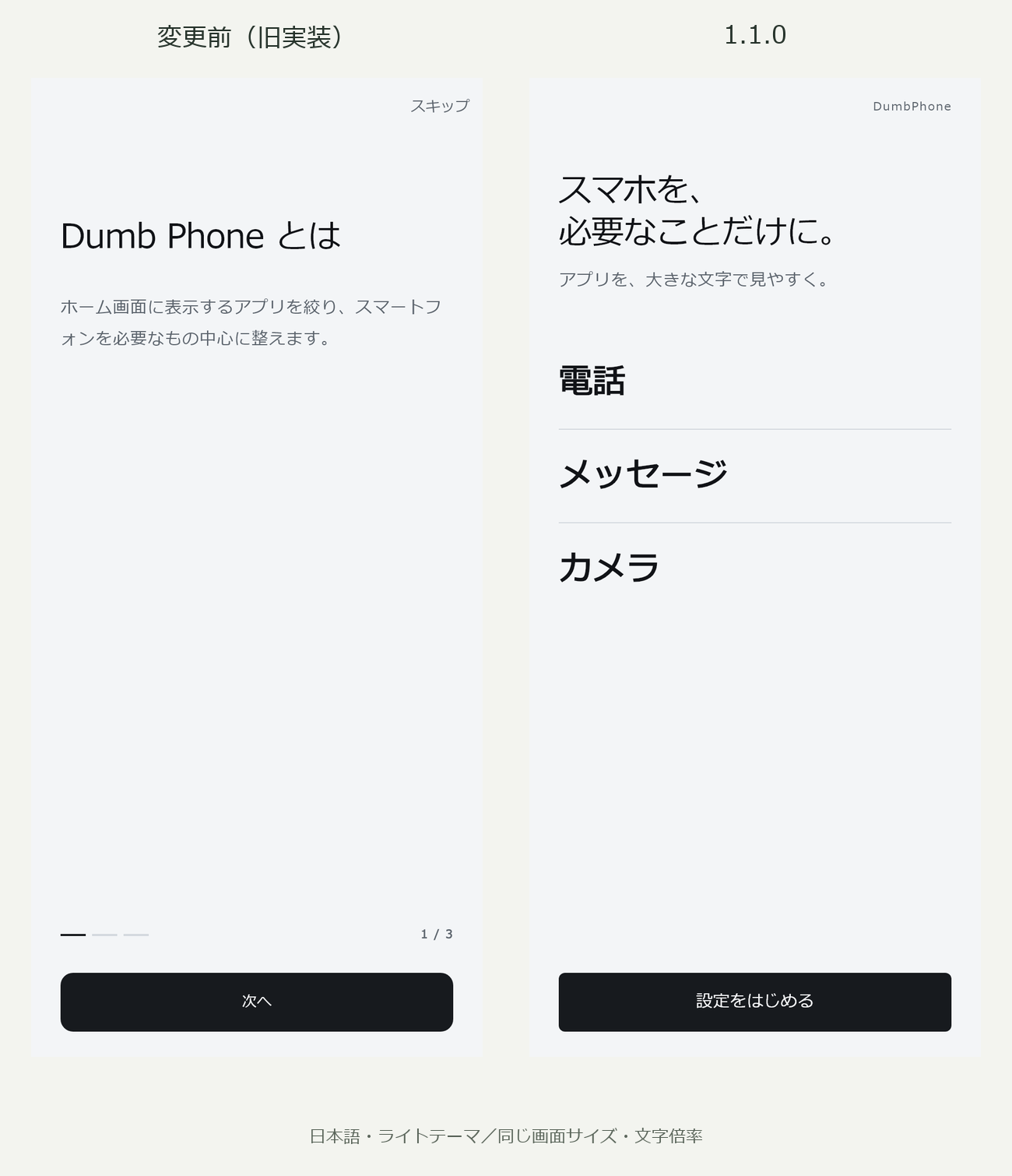
Previously, first launch began with a three-page user guide. In 1.1.0, it begins with a short welcome and a preview of the home screen.
You can see what the finished home screen looks like before adjusting the settings to suit you.
The order of setup steps is changing too.
| Before | 1.1.0 |
|---|---|
| User guide → Home app settings → Language → Theme → Font size → Edit home → Home | Welcome → Settings → Edit home → Choose how to use → Completion → Home |
The prompt to change Android’s home app now comes after you have chosen your apps and adjusted the appearance. You can get things ready before deciding how to use DumbPhone.
2. Language, theme and font size in one settings list
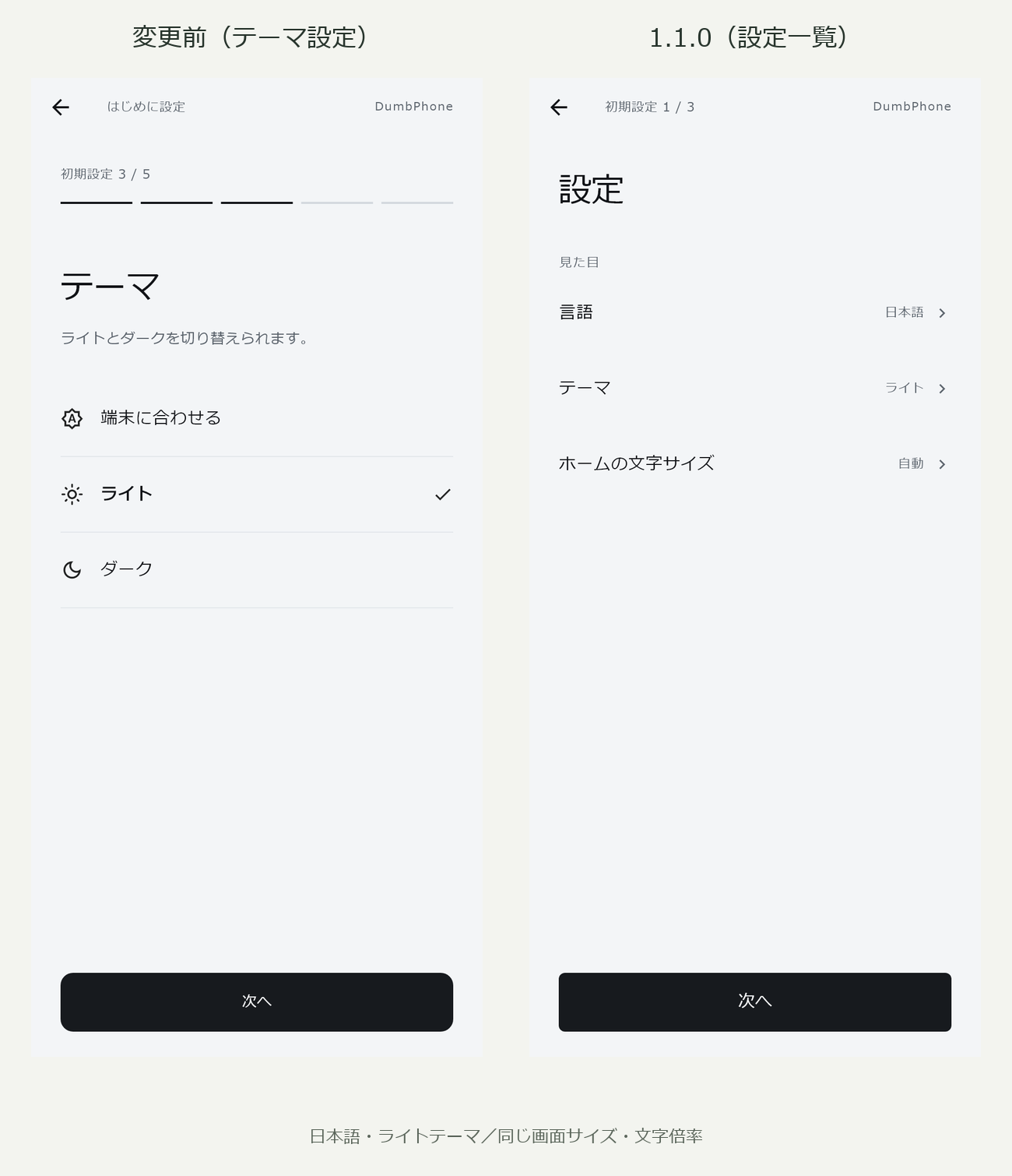
Previously, language, theme and home-screen font size were set in sequence on separate screens.
In 1.1.0, these options are brought together in one settings list. You can see the available settings and choose what to adjust. Each option opens a panel for detailed adjustments.
3. Choose “Use as home screen” or “Try as an app”
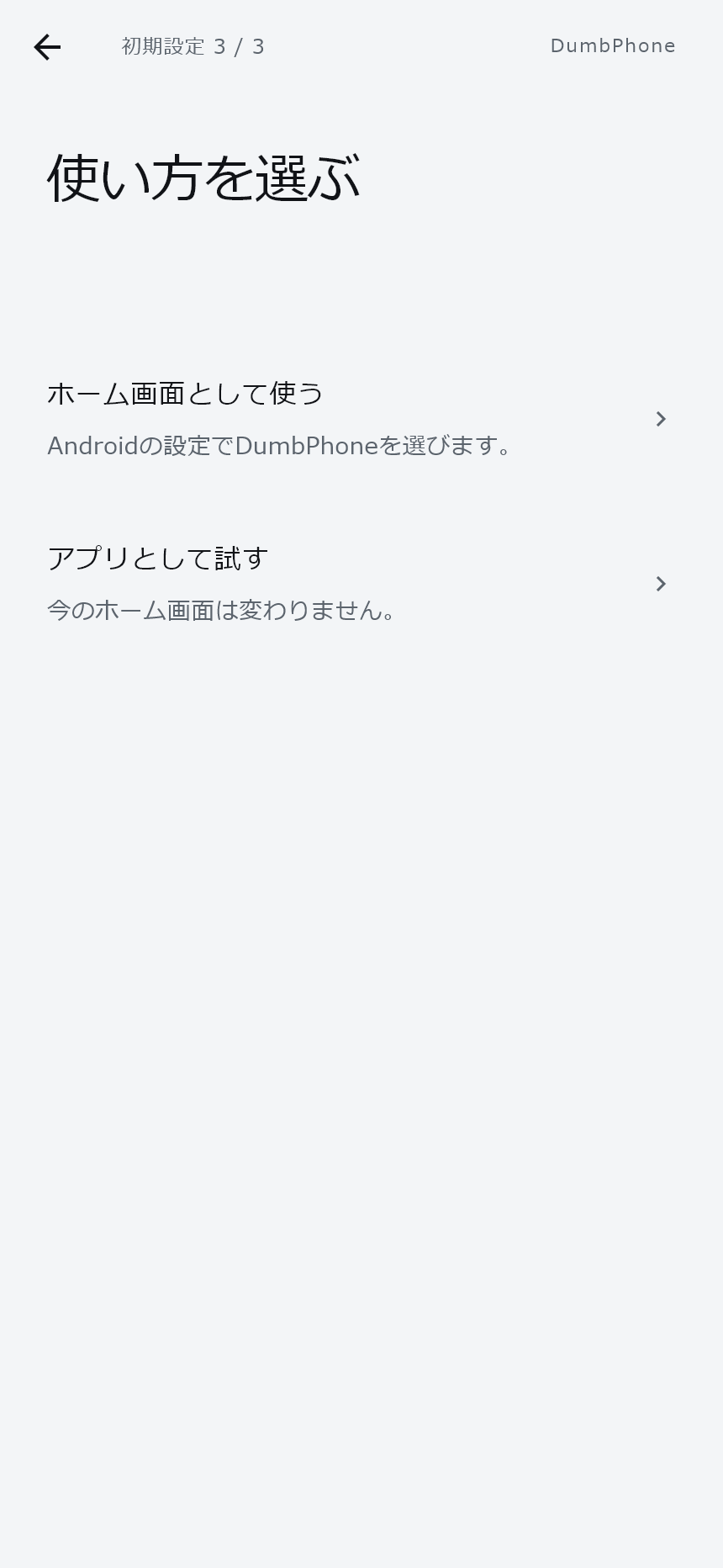
In 1.1.0, you choose how to use DumbPhone after setting up your home screen.
- Use as home screen: Open Android’s home app settings if needed.
- Try as an app: Start using DumbPhone as an app without changing your default Android home app.
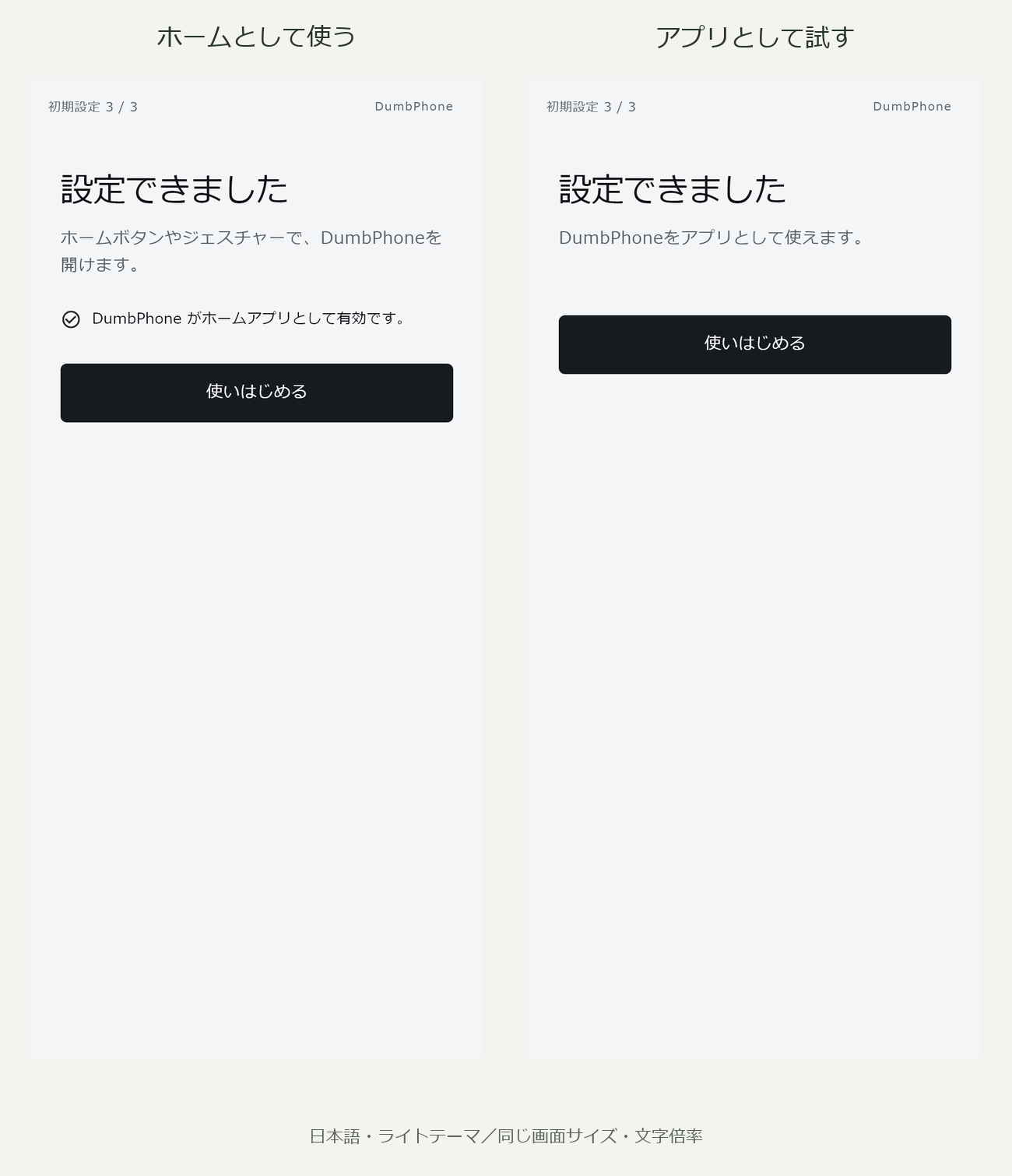
After making your choice, a “Setup complete” screen appears. Tap “Get started” to open DumbPhone’s home screen.
For users who have already completed setup, a normal launch starts at the home screen.
4. Make home-screen editing clear on the screen itself
We are also refining the screen for choosing and arranging the apps on your home screen.
The main entry point is now “Add apps”, and short explanations accompany the three-dot menu and drag icons. You can see how to remove an app from the home screen or reorder it without opening separate help.
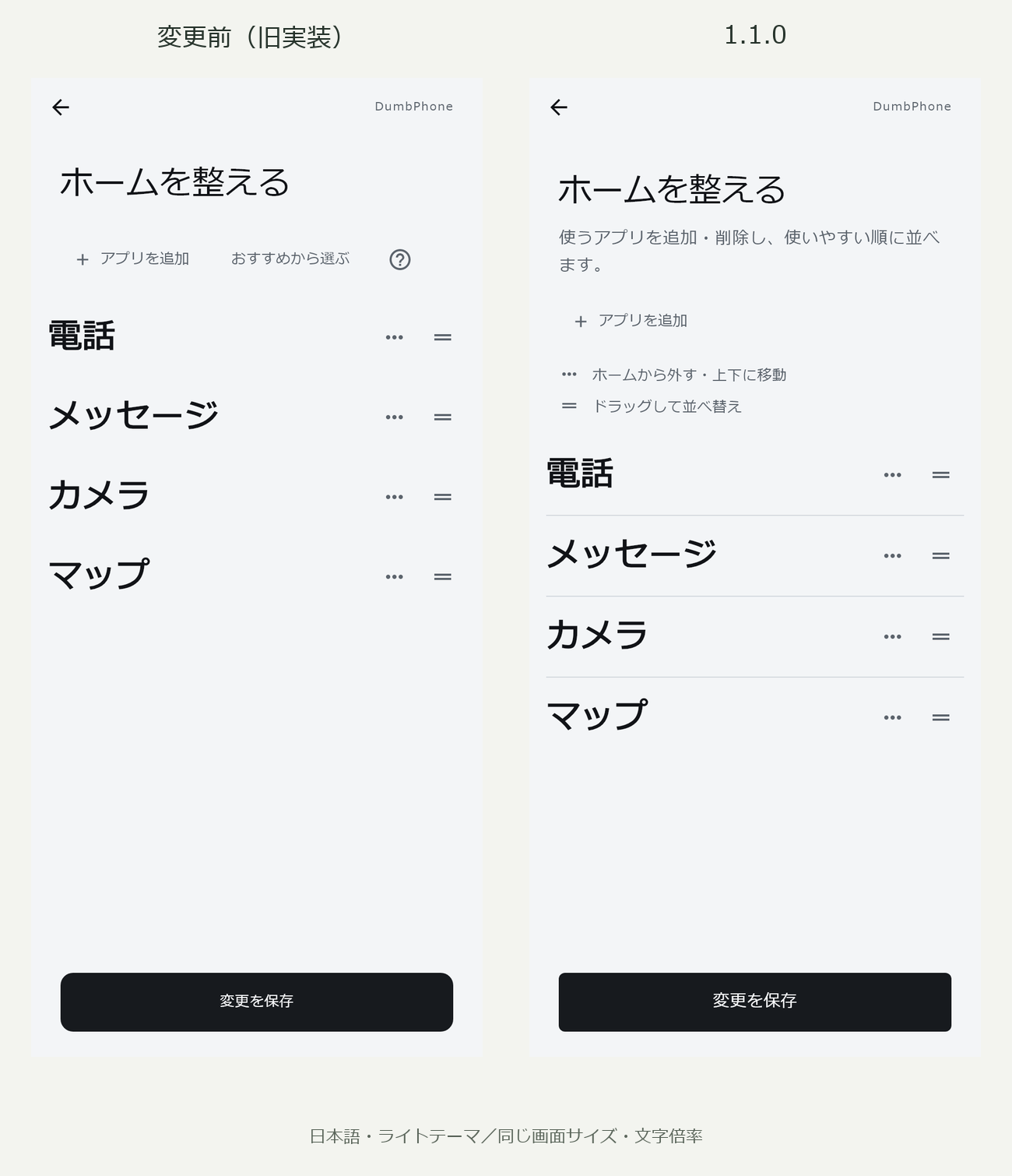
Initial setup and the editor opened later from the menu share the same headings, explanations, app selection and list design. The action button fits the context: “Next” during setup and “Save changes” during regular editing.
Removing apps from the home screen and reordering them are existing features. This update makes those actions easier to understand from the screen itself. “Remove from home” does not uninstall an app from the device.
5. Give app selection and search a consistent look
The app selection and search panels that open from the bottom of the screen will share a consistent approach to spacing and borders.
In the app selection panel, we adjusted the spacing between the heading, explanation and input field, as well as the space around “Back to editing” at the bottom.
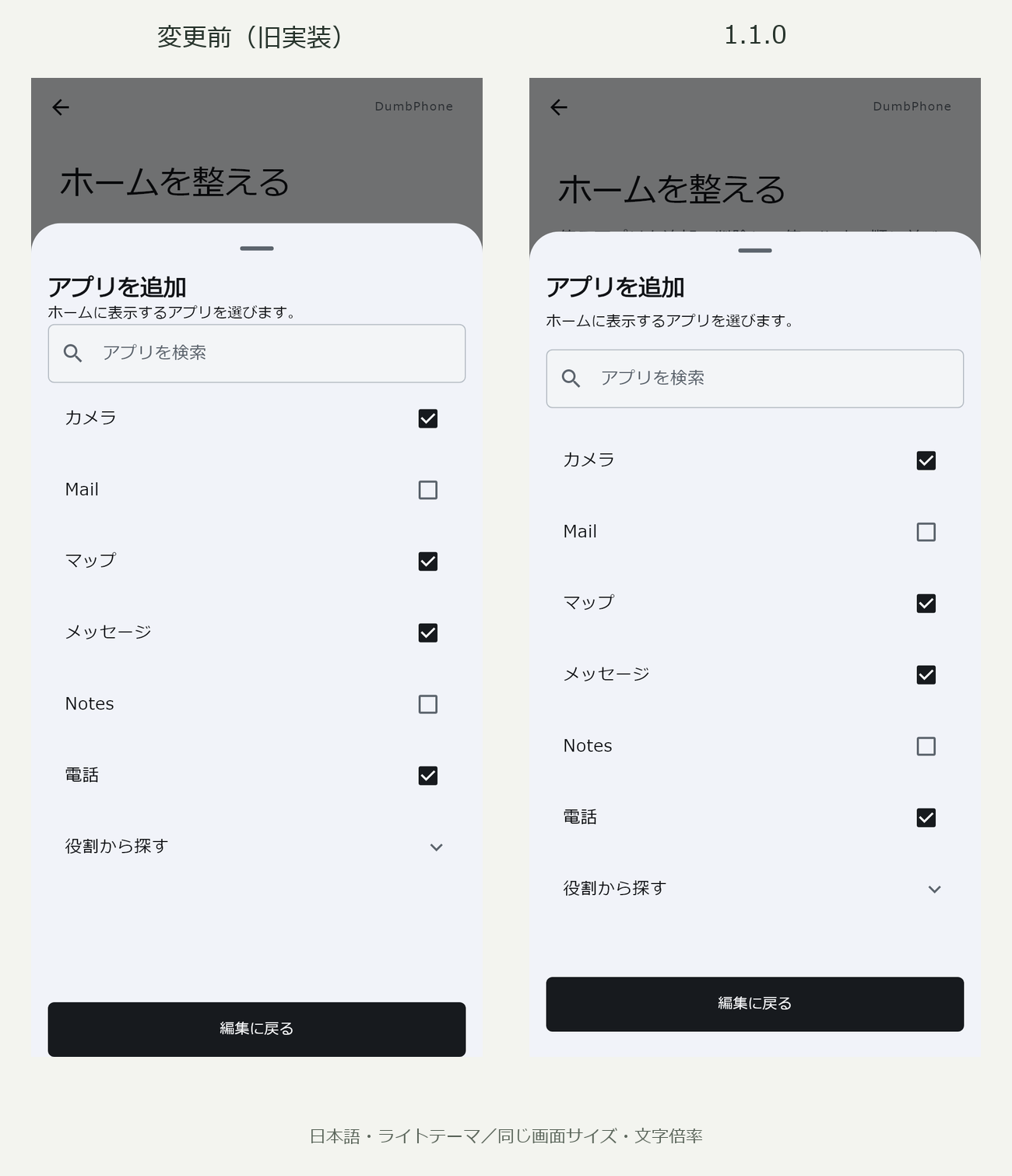
The search screen groups the search field and close control at the top. Thin dividers separate the app list, and the standard layout uses bold app names with the home-screen font-size setting.
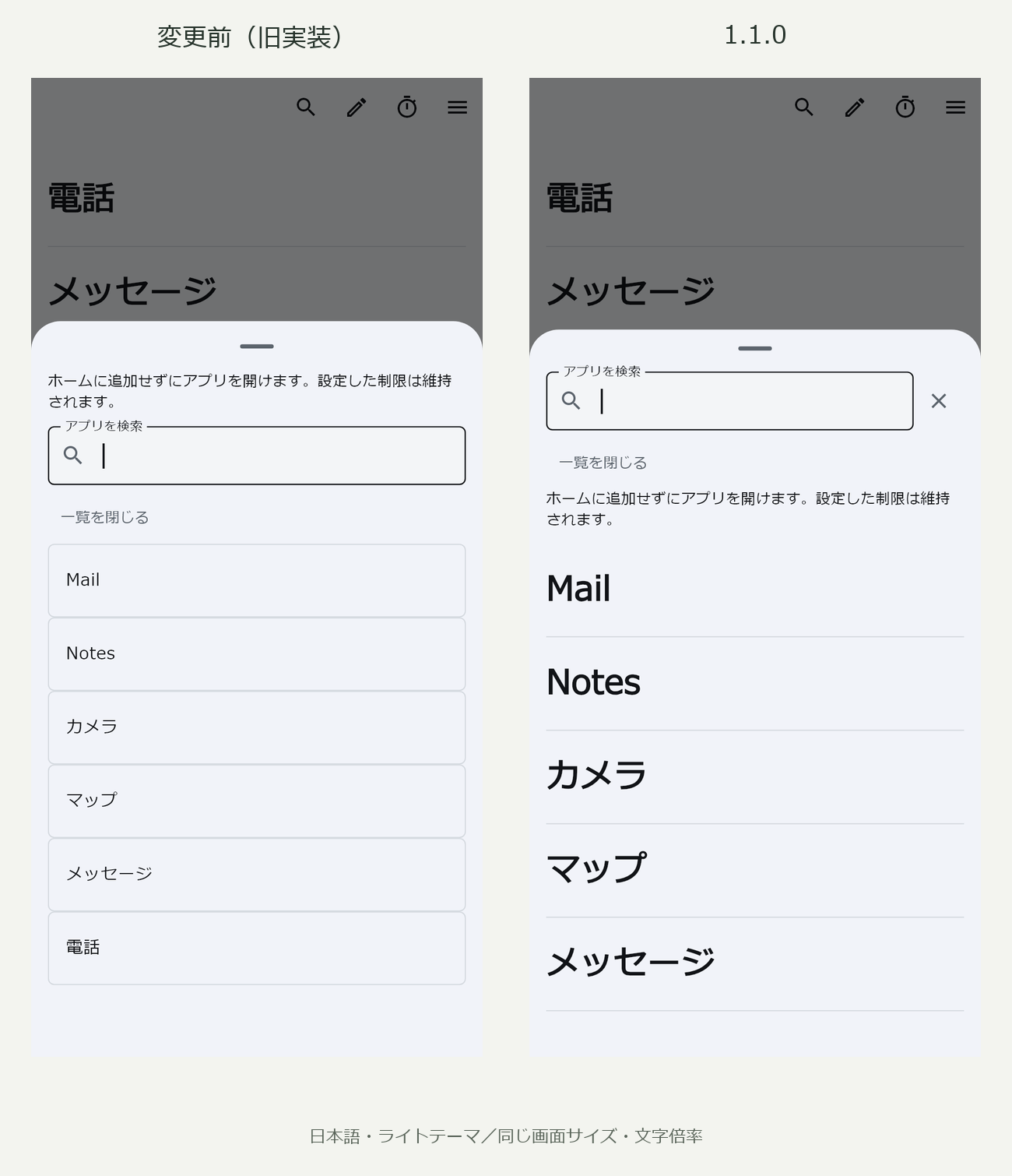
When the keyboard or other elements reduce the available height, the layout becomes more compact to leave space for interacting with search results. Device text scaling is also supported.
6. Improve how the app list is prepared and refreshed
Beyond the visible changes, we are improving how the list of installed apps is prepared.
| Area of improvement | 1.1.0 behavior |
|---|---|
| Preparing the list for the first time | Starts preloading after the welcome screen first appears |
| Retrieving app information | Runs in the background |
| Responding to app installs, removals and updates | Records changes and refreshes the list as needed when returning to DumbPhone |
| Refreshing on return | Keeps the existing home screen visible while refreshing; a failed refresh does not clear the list |
Setup transitions include brief animations and respect the device’s reduced-motion setting. The new setup, editing, search and completion screens have also been adjusted for the existing 12 supported languages.
Plans for future updates
Alongside the improvements in 1.1.0, we plan to work on the following two areas in later updates. Neither is included in this release, and the versions and timing have not been decided.
Reconsider the home-screen shortcut to “Arrange home”
We expect “Arrange home” to be used less often once you have chosen your apps and their order. We are therefore considering whether it needs a direct shortcut on the home screen, including the option of removing that shortcut.
We are also hesitant to change a familiar home screen. Even a shortcut that is rarely used has value when people know where to find it. Moving it could make existing users search for an action or learn its location again.
A familiar layout that people can use without confusion is part of DumbPhone’s simplicity. We will weigh the benefits of fewer shortcuts against the effort of relearning familiar actions. No decision has been made to remove the shortcut.
Rethink the role and features of focus mode
We feel that the current focus mode lacks a clear purpose and differs little from a time-limited preset.
We plan to clarify the problems focus mode should solve and reconsider how its role differs from the regular home screen and presets. Specific features and behavior are still to be considered.
A clearer path to a simple home screen
DumbPhone will keep its basic home screen, with large app names and divider lines. This update refines the steps for setting it up, along with the editing and search screens used day to day.
In a simple app, the order of explanations, button positions and spacing all affect how it feels to use. We will keep improving the screens so that both new and existing users can understand the available actions.
We will complete the remaining checks before deciding to release 1.1.0. Please bear with us until it is available.
For more about development so far, see DumbPhone’s results and challenges about four months after launch.